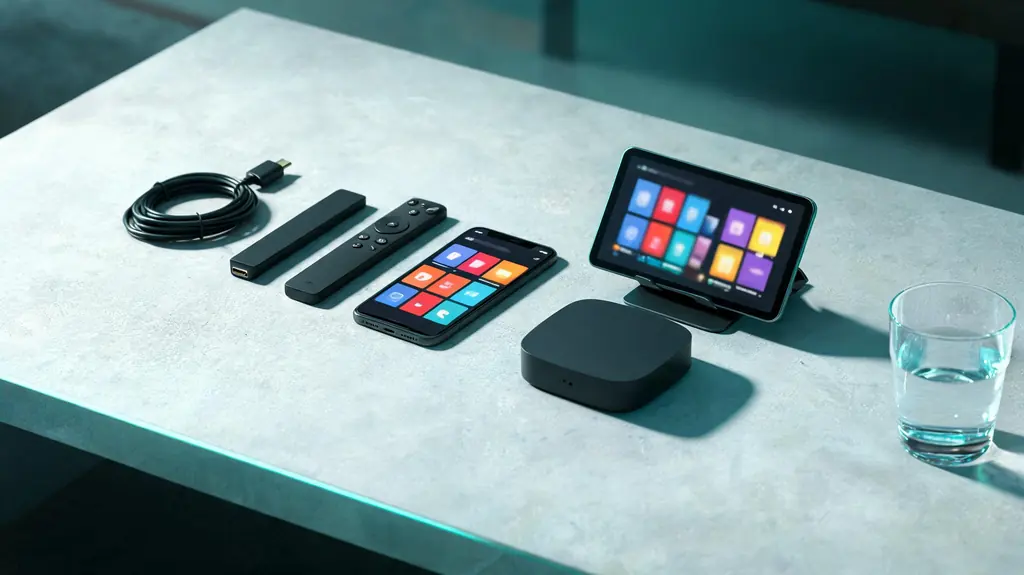
Within reach before step one
- An Apple TV 4K or Apple TV HD, an iPhone or an iPad on current software
- Your KezelTV username, password and server URL
- An Apple ID signed in on each device
- A plan with two or more screens if two devices will play at once
Still waiting on a login? Ask for a free KezelTV trial: a complete account for 24 hours, and nobody asks for a card.
Guide an hour out, or a show you missed? See how the KezelTV program guide loads and which channels keep a catch-up archive.
Give each device a job
Settle this before the guests arrive. The Apple TV goes on the main television, where it handles heavy live feeds with ease. An iPad makes a personal screen for another channel, and an iPhone is the one that travels to the kitchen or the balcony. Set up the Apple TV first, since it is the screen everyone will be watching.
Install Smarters Player Lite
Search the App Store on the Apple TV itself for Smarters Player Lite, the App Store name of the IPTV Smarters player. The television and phone editions may be listed separately, so install it on each device. A few other players accept an Xtream login too. Apple allows no sideloading, and TiviMate does not exist for Apple devices.
Sign in using your phone as the keyboard
Pick the Xtream Codes login and enter the username, password and server URL from your KezelTV chat. Typing with the Apple TV remote is slow; when a text field is selected, an iPhone on the same Wi-Fi offers a keyboard notification, which is far quicker. Watch for autocorrect turning the first letter of the username into a capital.
Let the line-up load once
The first download takes up to a minute, and tvOS gives little sign of progress. Leave it alone. After that the list is stored and the player opens straight onto it.
Turn captions on for a noisy room
With a room full of talking people, captions keep a live show readable. Where a channel sends subtitles, switch them on from the player during playback; on the Apple TV, Settings, Accessibility, Subtitles and Captioning, Style sets size, font and background for every app at once. Live channels send subtitles less often than on-demand titles carry them, so check on the channel you plan to watch.
Add the second screen
Sign in on the iPhone or iPad with the same three values. Every device playing at the same moment counts as one screen on your plan: on a one-screen plan the Apple TV and the iPhone take turns, while two screens let both play together. AirPlay from the iPhone to the television works too, but it ties up the phone, so the player on the Apple TV is the better route for the main picture.
Test both screens before people arrive
Play the main channel on the Apple TV, open a second channel on the iPhone and let both run for a couple of minutes. Check that the guide names the right program on each. If a receiver or soundbar is connected, set Audio Format under Settings, Video and Audio to Auto. When both screens hold steady, the evening is ready.