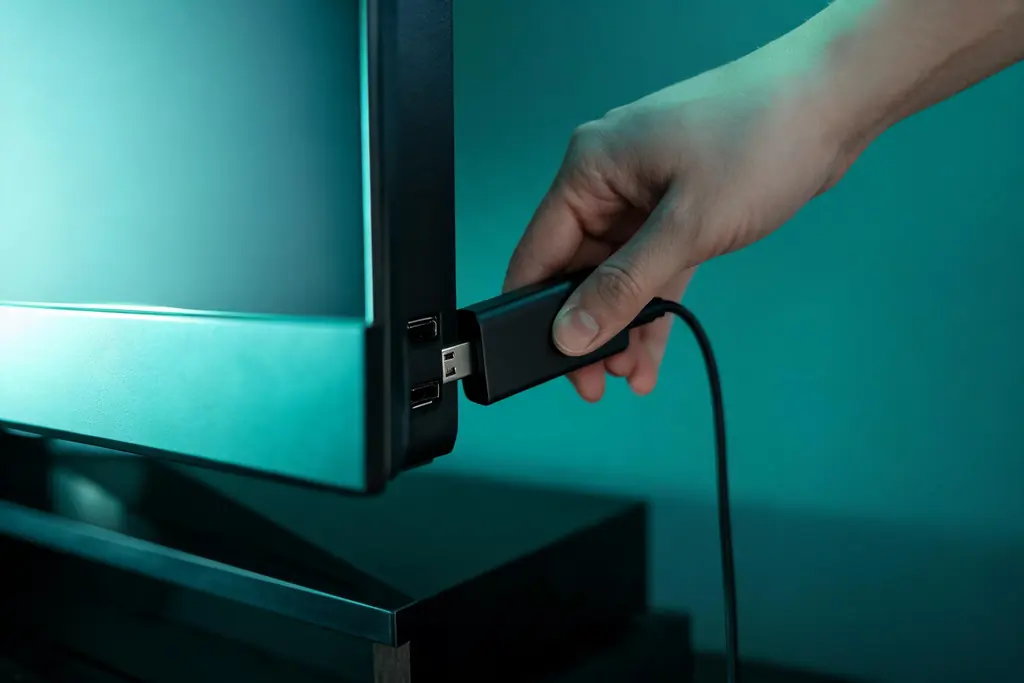
Within reach before step one
- A Fire TV Stick on Fire OS: any current model except the 4K Select, which runs Vega OS
- The username, password and server URL from your KezelTV WhatsApp chat
- A steady home connection, plus an Ethernet adapter if the router is in another room
- The Alexa voice remote, with batteries that will last the evening
Still waiting on a login? Ask for a free KezelTV trial: a complete account for 24 hours, and nobody asks for a card.
Guide an hour out, or a show you missed? See how the KezelTV program guide loads and which channels keep a catch-up archive.
Confirm the stick runs Fire OS
Go to Settings, then My Fire TV, then About, and read the model name. All current Fire TV Sticks run Fire OS apart from the Fire TV Stick 4K Select, which uses Vega OS instead. On that model Downloader does not exist and sideloading is blocked, leaving only whatever its own Appstore lists; if nothing there has an Xtream Codes option, switch the evening to a Fire OS stick or an Android TV box, which reach the live channels with far less effort. Own two sticks? Give the faster 4K or 4K Max to the television where everyone gathers on the big nights.
Allow apps from unknown sources
Out of the box, Fire OS refuses installers from outside its store. On recent software the Developer Options menu is hidden, so open Settings, My Fire TV, About and click the device name seven times, until the screen announces that you are a developer. Go back one screen, open Developer Options and switch on Install Unknown Apps, which older builds label Apps from Unknown Sources. If no switch is visible, it may only show up after Downloader is installed, listed beside that app, so continue and come back to it.
Get Downloader from the Appstore
On the home screen choose Find, then Search, and type Downloader. The genuine app has an orange icon with an arrow pointing down. Install it, open it a first time and accept the storage permission it requests; declining that request is the usual reason the following step fails without any message at all.
Fetch the player with Downloader
Select the address bar inside Downloader and enter the short link posted in your KezelTV chat, or the download address the IPTV Smarters Pro developer publishes. Press Go. When the bar reaches the end, the installer opens by itself: select Install, then Done, and say yes when Downloader offers to delete the installer file, so the stick keeps its storage free.
Sign in and let the list arrive
Launch IPTV Smarters Pro and choose Login with Xtream Codes API. The top field is just a nickname for the profile, so type anything. Enter the username, password and server URL character for character from the chat, then select Add User. On the first sign-in the line-up and the program guide need up to a minute to download, and the screen can look idle meanwhile, so keep your hands off the remote.
Put live TV one press from home
Return to the Fire TV home screen, hold the Home button and open Apps. Highlight the player, press the Menu button with three lines, and pick Move to front (some builds just say Move). The player now leads your apps row, so tonight and every night after it is Home, the player, Live TV. While you are inside the player, open Live TV once and add the four or five channels you reach for most to favorites.
Open the guide and rehearse the evening
Choose a live channel you know, let it run for a minute, then switch to the guide view to see what is on now and what follows. The program names should match the picture; if they are an hour adrift, change the time zone in the player settings. On channels that keep an archive, and on Smarters builds that offer replay, earlier programs open from the guide too, though archive length varies and some channels keep none. A familiar channel playing steadily under a correct guide means tonight is ready.