Within reach before step one
- A Samsung Smart TV, ideally a 2022 or newer model for Smart IPTV; older sets depend on the store
- Your KezelTV login and the M3U link from the WhatsApp chat
- A Samsung account signed in on the television
- A phone or laptop, in case the player registers playlists on a web page
Still waiting on a login? Ask for a free KezelTV trial: a complete account for 24 hours, and nobody asks for a card.
Guide an hour out, or a show you missed? See how the KezelTV program guide loads and which channels keep a catch-up archive.
Check the model year and software
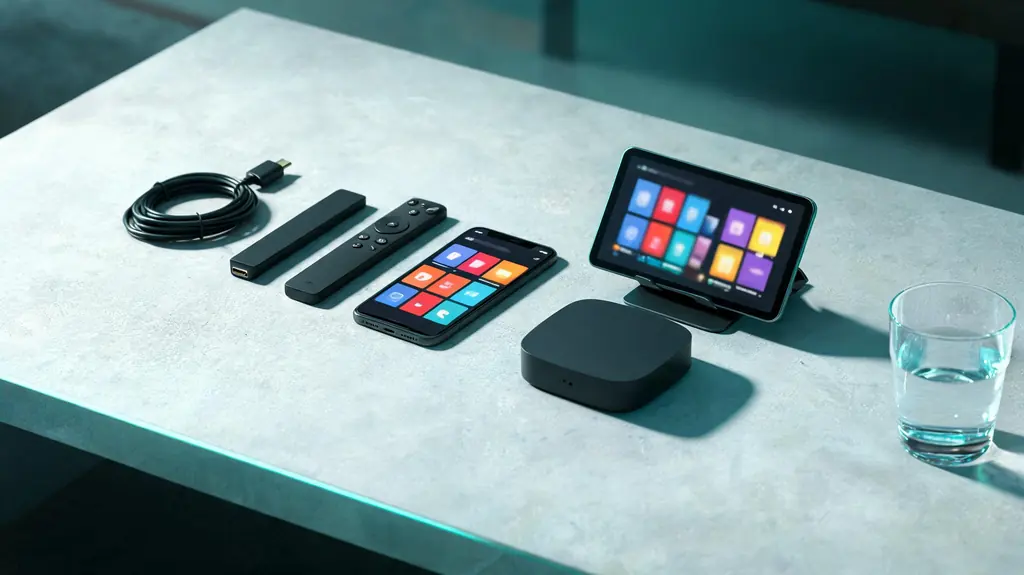
Open Settings, Support, About This TV and write down the model and software version. Smart IPTV needs Tizen 6.5 or newer, which rules in every 2022 model and later. Some older sets find a different player in the store, and some show 4K happily from built-in apps yet still choke on a heavy 4K live feed. If the set predates 2022 and its store has no player for an Xtream login or an M3U link, plug a streaming stick into a free HDMI socket; it is the faster road to live channels.
Find a player in the Samsung store
Press Home, open Apps and search. The selection on Tizen is small and it shifts with region and model year, and there is no sideloading, so the store is the entire choice. Pick one with an Xtream Codes option, or at least a playlist field.
Register the set if the player asks
Smart IPTV and a few others link a playlist to the television hardware, by its MAC address, rather than asking for a username and password. The app displays the MAC address and a web page; on your phone or laptop, open that page, type the address and paste in the playlist link. Keep a note of the MAC: it belongs to this television, so a new set means registering again.
Enter your KezelTV details
When the player accepts an Xtream Codes login, type the username, password and server URL from the chat. If the only field is for a playlist, paste the M3U link from the same message. The Xtream route carries the program guide and the group structure with it, so pick it whenever the player offers both.
Shrink the list for quick switching
Tizen players move slowly through long lists, and on a live night that lag is what everyone notices. Hide every group the household never opens and gather the channels you switch between during an evening into one favorites list. On a Samsung, this changes daily use more than any setting does.
Use the HD copy when 4K stutters
Many channels appear in the list in more than one quality. If the 4K version stutters while HD runs smoothly, the set is out of decoding power and your internet is not to blame, so the HD copy is the one to keep in favorites for live viewing on this television.
Check the guide and the sound path
Open a familiar live channel and look at the guide: Tizen players range from a full grid to no guide at all, and finding out which you have now spares a surprise later. For sound, when a soundbar is on HDMI ARC or eARC, Settings, Sound, Expert Settings is where Digital Output Audio Format can be set to Pass-through; with the television speakers, leave it on PCM.